
How to Choose the Best LCD Monitor for Your Needs?
Choosing the best lcd monitor is less about buying the largest screen and more about matching technology with daily tasks. A spreadsheet user, photo editor, competitive gamer, and remote worker need different specifications. Screen size, resolution, refresh rate, panel type, ports, ergonomics, and power consumption all influence the experience. A bright 27-inch display may look impressive in a showroom, yet it could feel excessive on a shallow desk.
Market data provides useful context. IDC reported approximately 27.8 million PC monitors shipped worldwide in the first quarter of 2024, representing year-over-year growth. This demand reflects continued investment in home offices, gaming, and productivity setups. However, shipment growth does not prove that every popular model offers good value. It only shows market movement. Buyers still need independent testing and careful comparison.
Professional standards can reduce guesswork. VESA DisplayHDR specifications help explain brightness and high-dynamic-range performance, while ENERGY STAR criteria support more efficient purchasing decisions. TÜV Rheinland certifications may also indicate testing for flicker reduction or eye comfort, although certification details should be checked carefully. Those labels are useful, not magical.
Real-world experience matters. Check whether text remains sharp at normal viewing distance, whether the stand adjusts easily, and whether the backlight feels comfortable after several hours. Measure the desk first. Consider your computer’s graphics output, too. A high-refresh monitor cannot deliver smooth performance if the system cannot produce matching frame rates.
No checklist is perfect. Marketing language can still blur important differences. This guide compares the evidence, practical specifications, and everyday compromises behind each choice, helping you select a monitor that fits your work, budget, and habits.
Define Your Main Tasks and Monitor Usage Environment
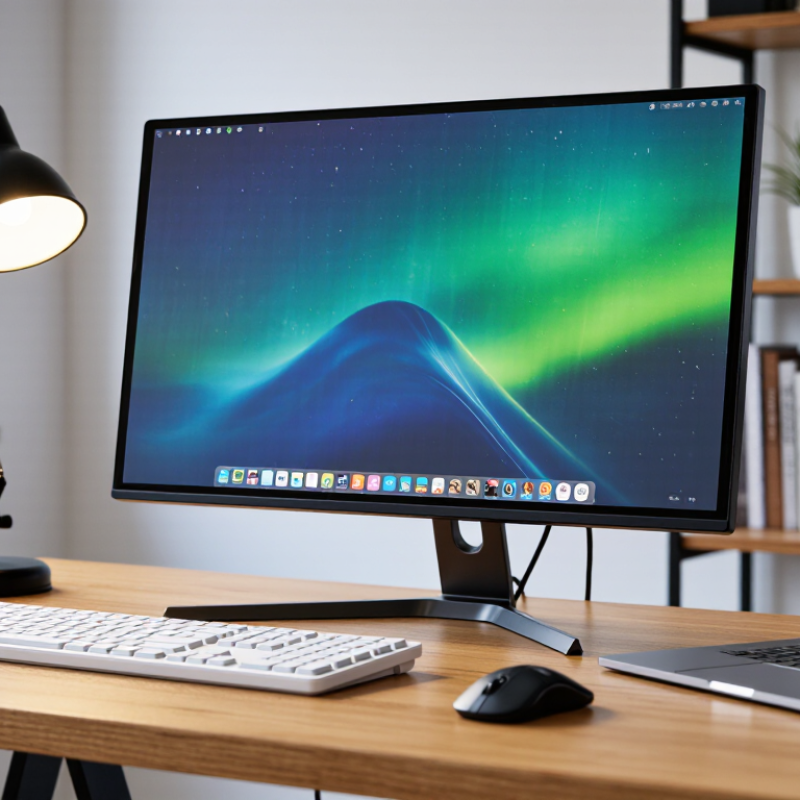
Before comparing LCD monitor specifications, define the work it must handle each day. A monitor for spreadsheets should display sharp text and support comfortable reading. Photo editing needs consistent color and useful brightness control. Fast games benefit from smooth motion and low input delay. Video work may require a larger workspace for timelines and preview windows. Measure your desk, too. A wide screen can feel impressive, yet leave little room for speakers, notebooks, or a second display. I once selected a screen by resolution alone. The image looked excellent, but the stand was too low for my posture. That choice created neck strain after long sessions.
Your usage environment matters as much as your task. Check the light behind and beside the screen. Strong windows can create reflections and make dark images difficult to inspect. A matte surface may help in bright rooms, although it can slightly reduce perceived clarity. In a dim room, adjustable brightness and a warmer evening setting can make extended work more comfortable. Do not place the display where overhead lights shine directly onto it. Measure viewing distance before choosing screen size. A large panel viewed too closely may require constant head movement. Check the stand’s height, tilt, and swivel range. Shared desks need flexible adjustment. Test the screen with your real files, lighting, and chair position when possible. Specifications inform decisions, but daily comfort reveals weaknesses they cannot show.
How to Choose the Best LCD Monitor for Your Needs? - Define Your Main Tasks and Monitor Usage Environment
| Main Task | Recommended Monitor Specifications | Suitable Usage Environment | Why These Specifications Matter | Priority Level |
|---|---|---|---|---|
| Office Work and Web Browsing |
23–27 inches; 1920 × 1080 or 2560 × 1440 resolution; 60–100 Hz refresh rate; IPS or VA panel; adjustable stand |
Indoor office or home workspace with moderate lighting and several hours of daily use | A Full HD display is adequate for basic productivity, while a 1440p display provides more workspace for documents and browser windows. An adjustable stand helps maintain a comfortable viewing position. | Balanced Choice |
| Programming and Data Analysis |
27–32 inches; 2560 × 1440 or 3840 × 2160 resolution; IPS panel; 100% sRGB coverage preferred; height, tilt, and swivel adjustment |
Desk-based workstation where text, code, spreadsheets, and multiple application windows are displayed simultaneously | Higher resolution improves text sharpness and allows more content to fit on screen. A larger display and ergonomic adjustment can reduce frequent window switching and neck strain. | High Resolution |
| Graphic Design and Photo Editing |
27–32 inches; 2560 × 1440 or 3840 × 2160 resolution; IPS panel; at least 100% sRGB coverage; factory calibration or calibration support; 300–400 nits brightness |
Controlled indoor lighting with limited glare and a consistent viewing distance | IPS panels generally provide stable viewing angles, while wide and accurate color coverage helps represent images more consistently. Calibration support improves color reliability for visual work. | Color Accuracy |
| Video Editing and Content Creation |
27–32 inches; 2560 × 1440 or 3840 × 2160 resolution; IPS panel; wide color gamut; 100–144 Hz refresh rate; USB hub preferred |
Dedicated creative workstation with sufficient desk space and controlled ambient light | Higher resolution helps with timeline and detail work. A wide color gamut supports richer footage, while a built-in USB hub can simplify connection of storage devices and peripherals. | Detail and Workflow |
| Competitive Gaming |
24–27 inches; 1920 × 1080 or 2560 × 1440 resolution; 144–240 Hz refresh rate; 1–2 ms advertised response time; adaptive synchronization support; low input lag |
Indoor gaming setup with stable power, controlled glare, and a graphics system capable of producing high frame rates | A high refresh rate makes motion appear smoother and can improve the clarity of fast-moving objects. Low input lag and adaptive synchronization help create a more responsive and consistent experience. | Motion Performance |
| Single-Player and Console Gaming |
27–32 inches; 2560 × 1440 or 3840 × 2160 resolution; 120–165 Hz refresh rate; HDMI 2.0 or newer for high-resolution high-refresh input; HDR support preferred |
Bedroom, living room, or gaming desk where the display may be viewed from a greater distance | A larger screen and higher resolution improve visual immersion. A refresh rate above 60 Hz supports smoother gameplay, while suitable HDMI connectivity is important for compatible consoles and devices. | Immersion |
| Bright Room or Near-Window Use |
27 inches or larger; IPS or VA panel; 300–500 nits brightness; matte anti-glare coating; height adjustment; flicker-reduced backlight |
Workspace exposed to daylight, overhead lighting, or reflections from windows and glossy surfaces | Higher brightness and a matte surface make content easier to see in strong ambient light. Correct positioning and height adjustment can reduce reflections and improve viewing comfort. | Visibility |
| Dim Room or Evening Use |
IPS or VA panel; adjustable brightness below typical office levels; flicker-free operation; low-blue-light mode; matte coating preferred |
Home office or bedroom with low ambient light and extended evening viewing | Flexible brightness control prevents the screen from appearing excessively bright in a dark room. Flicker reduction and a comfortable viewing position may help reduce visual fatigue. | Eye Comfort |
| Shared Workspace or Multi-User Viewing |
24–32 inches; IPS panel; 250–400 nits brightness; wide viewing angles; adjustable tilt and swivel; VESA mounting support |
Shared office, classroom, studio, or desk used by people with different seating positions | IPS technology generally maintains color and contrast more consistently when viewed from different angles. Swivel adjustment and VESA compatibility make it easier to position the screen for multiple users. | Viewing Flexibility |
| Small Desk or Flexible Workspace |
22–27 inches; 1920 × 1080 or 2560 × 1440 resolution; slim stand or VESA support; HDMI and DisplayPort; built-in cable management |
Compact home office, dormitory, mobile workstation, or desk with limited depth | A compact screen preserves desk space while maintaining practical readability. VESA mounting and cable management can free additional workspace and improve organization. | Space Efficiency |
| General-Purpose Long-Term Use |
24–27 inches; 2560 × 1440 resolution preferred; IPS or VA panel; 75–120 Hz refresh rate; 250–350 nits brightness; height-adjustable stand |
Mixed-use home or office environment involving documents, streaming, browsing, and occasional gaming | This combination provides a practical balance of sharpness, smoothness, viewing comfort, and everyday versatility without emphasizing a single specialized workload. | All-Rounder |
Related Posts
-

Top Advantages of High Brightness LCD Displays for Outdoor Use?
-
Top High Brightness LCD Displays for Ultimate Visibility?
-
10 Essential Tips for Choosing the Right LCD Display for Your Needs?
-

How to Choose the Best LED Display Controller for Your Needs?
-

Why Choose Led Display Malaysia for Your Business Needs?
-
2026 Best LCD Screen Options for Crystal Clear Display Quality?